A Practical Guide to Open MD Files on Any Device
So, you've stumbled upon a file ending in .md and you're wondering what to do with it. Good news: you don't need any fancy software. At their heart, .md files are just plain text, which means you can open them with basic editors like Notepad on Windows or TextEdit on a Mac.
But to really see them shine, you'll want something that understands their simple formatting. A dedicated Markdown editor like Obsidian or Typora is the way to go. These tools take the simple syntax—like asterisks for bold text—and render it into a clean, beautiful document.
What's the Big Deal with MD Files Anyway?
If you've ever downloaded a project from GitHub, you've definitely seen an .md file. These are Markdown documents, a lightweight way to format text that prioritizes one thing above all else: readability.
Instead of fiddling with complex menus in a word processor, you use simple characters to style your text. Think of it as a clean, efficient shorthand for creating organized documents.
The true power of .md files is their incredible simplicity and portability. Since they're just plain text, they work on virtually any device or operating system without any compatibility headaches. It's this universal nature that has made Markdown the go-to standard for so many different uses.
Why Are These Files Everywhere?
You'll find .md files all over the place, from software development projects to personal knowledge vaults. Their versatility is the key reason they've become so popular.
Software Documentation: The most common place you'll see an
.mdfile is as aREADME.mdin a software project. These files give you the essential instructions and an overview of what the project is about. If you're curious about the significance of README files, they're the front door to understanding any codebase.Note-Taking and Knowledge Management: Apps like Obsidian are built on .md files. They transform simple text documents into a powerful, interconnected web of knowledge. For instance, in an Obsibrain vault, your daily notes are just .md files, making it easy to track meeting minutes, link them to specific projects, and create action items that are automatically organized.
Content Creation: Many bloggers and writers draft their content in Markdown. Why? Because it’s clean, distraction-free, and converts effortlessly to HTML for publishing online.
The language was created back in 2004 by John Gruber and Aaron Swartz. They wanted a simpler alternative to clunky HTML, something that was just as easy to read in its raw form as it was when rendered.
The core philosophy of Markdown is that a document should be publishable as-is, as plain text, without looking like it's been marked up with tags or formatting instructions.
This makes it the perfect format for getting ideas down fast. In fact, learning a few quick capture methods for notes can seriously boost your productivity, and it all starts with this straightforward format. Ultimately, when you open an .md file, you're tapping into a system built for pure clarity and efficiency.
Choosing the Right Tool to Open Your MD File
Not all Markdown viewers are created equal. Depending on what you need to do—just read a file, edit code documentation, or build a personal knowledge base—the right tool can make all the difference.
Here’s a quick breakdown to help you decide.
Dedicated Markdown Editors
Writing, note-taking, and organizing knowledge.
Live preview, distraction-free modes, linking, organization features.
Obsidian, Typora, iA Writer
Code Editors
Developers working with documentation alongside code.
Syntax highlighting, version control integration, powerful extensions.
Visual Studio Code, Sublime Text
Simple Text Editors
Quick edits or viewing on any system without extra software.
Basic text editing, universal compatibility, no frills.
Notepad (Windows), TextEdit (macOS), Gedit (Linux)
For most people, a dedicated editor like Obsidian offers the best balance of features and simplicity. But if you're a developer, sticking with a code editor like VS Code is probably more efficient. And in a pinch, any basic text editor will get the job done.
Opening MD Files on Your Desktop
The first time you double-click a .md file, your computer might open it in a basic text editor like Notepad on Windows or TextEdit on a Mac. And sure, that technically works. At their core, Markdown files are just plain text.
But opening one this way misses the entire point. You'll just see a jumble of raw syntax—asterisks, hashtags, and brackets—instead of the clean, formatted document the creator intended. To actually see the formatting in action, you need an app that can render it properly.
This is where dedicated Markdown editors come in, turning that plain text into a polished, readable document right before your eyes.
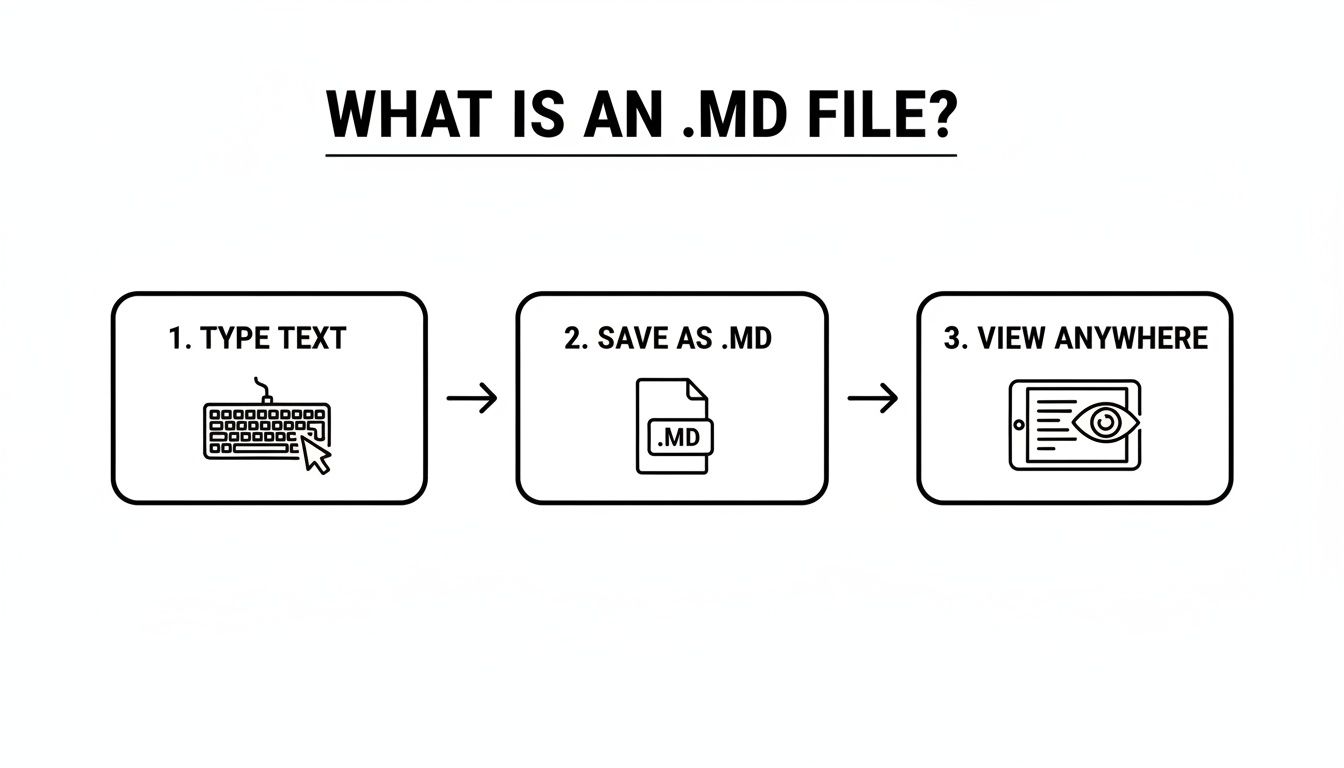
This simple flow really gets to the heart of Markdown's biggest advantage: its incredible portability. You can write it anywhere and read it anywhere, as long as you have the right tool for the job.
Recommended Desktop Applications
Fortunately, every operating system has some fantastic options for working with .md files. The best ones offer a "live preview" feature, which is a game-changer. It shows you the raw text and the formatted output side-by-side, so you see exactly what you're getting as you type.
For Windows Users: An app like Typora is a phenomenal choice. It has a beautiful, distraction-free interface that renders the Markdown as you type, making it feel less like coding and more like using a modern word processor.
For Linux Users: Ghostwriter is a popular open-source editor. It’s known for its clean UI and focus on providing a calm writing environment, complete with a live HTML preview.
These apps do more than just show you pretty text. They usually come packed with helpful features like syntax highlighting, document outlines for easy navigation, and options to export your work to PDF or HTML.
The real leap in productivity comes when you stop manually opening files and just tell your computer which app to use by default. Setting your favorite Markdown editor as the default eliminates that tedious "Open With..." step for good.
Imagine you're managing a project in an Obsibrain vault and a colleague sends you a few .md files containing research notes. If you've set Obsidian as your default, those files open directly inside your knowledge hub. You can instantly link their findings to existing project plans, tasks, or meeting minutes without any friction. It's a small tweak that makes your workflow feel completely seamless.
How to Set a Default App for MD Files
Tired of right-clicking every single time? Let's fix that. Here’s how to permanently associate .md files with your program of choice and save yourself a ton of clicks.
On Windows 11 Head to Settings > Apps > Default apps. In the search bar at the top, type .md and select it from the results. You'll see what's currently set as the default—just click it to pick a new app like Obsidian or Typora from the list. Simple as that.
On macOS Find any .md file on your system, right-click it, and choose Get Info. Look for the "Open with:" section and select your preferred application from the dropdown menu. Now for the crucial part: click the "Change All..." button. This tells your Mac to use that app for every .md file from now on.
Once you make this change, your desktop will be perfectly set up to open md files the right way, every time, showing you the rendered content exactly as it was meant to be seen.
Using Powerful Editors Like VS Code and Obsidian
Sure, any basic text editor can pop open a .md file, but all you'll see is the raw syntax—the hashtags, asterisks, and brackets. To actually work with Markdown in a meaningful way, you need an app that understands its structure and can show you what the finished product looks like. This is where dedicated editors like Visual Studio Code and Obsidian completely change the game.
These tools aren't just for viewing files; they're dynamic environments built for creating and organizing. They turn simple text into powerful assets, whether you're managing documentation for a coding project or building out a personal knowledge base.
Visual Studio Code for Instant Previews
For developers, Visual Studio Code (VS Code) is pretty much the command center for everything they do. Its native support for Markdown is fantastic. You don’t have to jump between different apps just to see how your README.md file is shaping up.
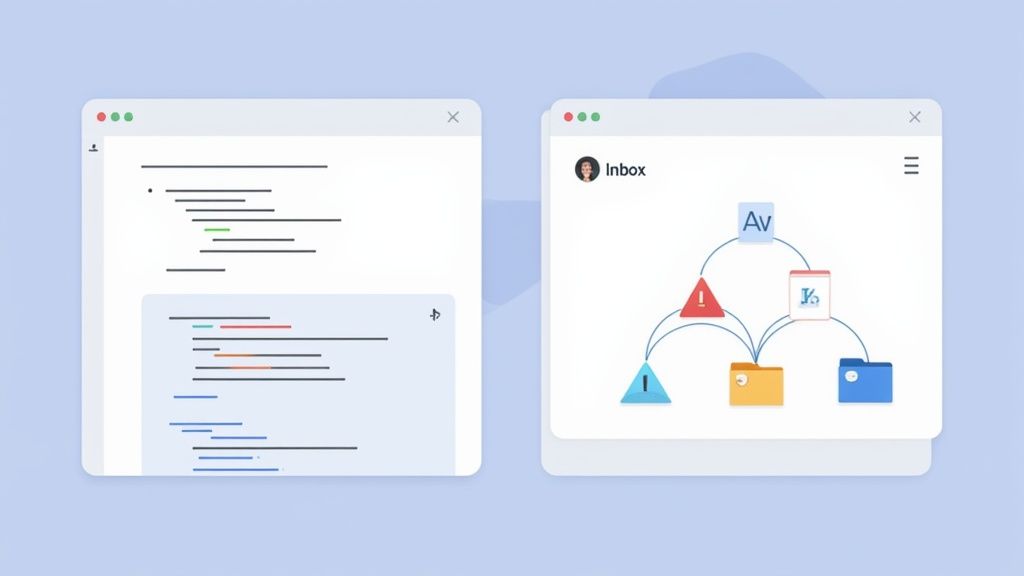
With a .md file open, one simple keyboard shortcut gives you an instant live preview. Just hit Ctrl+Shift+V on Windows/Linux or Cmd+Shift+V on macOS. This command splits your screen, showing your raw Markdown on one side and the clean, rendered HTML preview on the other. It's the perfect setup for writing clear documentation right next to your code.
The massive adoption of .md files is tied directly to platforms like GitHub, where the README.md file has been a project staple since its launch in 2008. By 2023, GitHub was hosting over 420 million repositories, and it's estimated that 85-95% of them contain these essential Markdown files. That adds up to billions of .md file opens every single year across the globe.
Obsidian: From Files to a Second Brain
While VS Code is brilliant for handling individual files, Obsidian has a completely different mission. It's designed to turn an entire folder of .md files into a connected, searchable knowledge base—what many people call a "second brain." When you open md files in Obsidian, you aren't just reading documents; you're actively building a network of your own ideas.
This is where the idea of personal knowledge management really comes alive. Every file can link to another, creating a web of information that works a lot like our own brains do when making connections.
Obsidian’s power lies in its local-first philosophy. Your notes are just
.mdfiles in a folder on your computer, giving you full ownership and control over your data. It’s both simple and incredibly robust.
A great use case for this is creating a project hub with Obsibrain. You can create a central .md file for a new project, then link out to other .md files for meeting notes, stakeholder contacts, technical specs, and brainstorming sessions. This creates a powerful, self-contained wiki for your project, where all the crucial information is just one click away. It prevents vital details from getting lost in emails or scattered across different apps.
This workflow usually involves:
Creating a central project note to act as a dashboard.
Linking out to new or existing
.mdfiles for specific details.Tagging all related files with the project name for easy searching and filtering.
This process transforms a bunch of scattered, isolated files into a truly integrated part of your knowledge graph. Over time, that random assortment of documents evolves into a deeply interconnected and easily searchable personal wiki.
Beyond these desktop powerhouses, checking out the top online Markdown editors can give you more flexibility. They're a great option when you need to make a quick edit on the go without having to install any software.
Accessing Your MD Files on Mobile Devices
Your notes shouldn't be chained to your desk. In a world where work happens everywhere, being able to open md files on your phone or tablet is an absolute must for staying productive. The good news is, both iOS and Android have some fantastic apps that make this seamless, ensuring your workflow follows you wherever you go.
Whether you're quickly reviewing a project's README file on the train or jotting down a sudden burst of inspiration, the right mobile app turns your device into a powerful Markdown editor.

Recommended Apps for iOS and Android
For the Apple crowd, iA Writer is a fan favorite, known for its minimalist, distraction-free interface. It gives you a clean writing experience that renders Markdown beautifully and syncs effortlessly with services like iCloud and Dropbox. This means any edits you make on your iPhone are immediately reflected on your Mac.
Over on the Android side, Markor is a standout open-source option. It's incredibly customizable, works completely offline, and integrates directly with your device's file system. This gives you total control over your .md files without locking you into a specific cloud service.
The real magic happens when you connect these mobile apps to a cloud-synced folder that also houses your main desktop vault. This creates a unified system where your notes are always up-to-date across all your devices.
Syncing for a Consistent Workflow
Setting up synchronization is the secret to a fluid mobile experience. Most top-tier Markdown apps let you point them to a specific folder in your cloud storage, whether that's iCloud Drive, Dropbox, or Google Drive. Once you've connected it, the app can read from and write to that folder, keeping everything in perfect harmony.
This setup is especially powerful if you're using a knowledge management system like Obsibrain. By syncing your Obsibrain vault to your mobile device, you essentially carry your entire "second brain" in your pocket. You can:
Capture ideas on the go: Use your phone to quickly create a new
.mdnote for a blog post idea or a client request, knowing it will be waiting in your Obsibrain vault when you get back to your desk.Review project plans: Pull up key documents and meeting notes on your tablet right before a client call.
Update tasks from anywhere: Add a new item to a task list in your daily note, ensuring your to-do list is always current.
For anyone looking to create this kind of connected system, the next logical step is figuring out the specifics of syncing your vault. The process ensures that whether you capture a thought on your laptop or your phone, it all ends up in the same trusted place. You can find detailed instructions and best practices on how to properly sync your Obsidian vault across different platforms. This simple integration makes it easy to open md files anywhere and keep your digital life perfectly organized.
Solving Common Problems with MD Files
While a good app is usually the best way to handle .md files, sometimes you just need a quick, lightweight way to view a document without all the fuss. For anyone comfortable in a terminal, the command line is a fantastic tool for this.
You could use a simple command like cat yourfile.md, but that just dumps the raw text onto your screen. All the formatting will be lost.
For a much better experience, a command-line tool like glow renders your Markdown beautifully, complete with colors and proper styling, right in your terminal. This is perfect for peeking at README.md files or other bits of documentation without ever leaving your coding workflow.
Fixing Rendering and Display Issues
Ever opened a .md file and seen a perfectly good table or checklist show up as a jumble of plain text? It’s a surprisingly common frustration, and the culprit is almost always a mismatch in Markdown "flavors."
The original Markdown spec was pretty barebones, so over time, different platforms created their own powerful extensions.
GitHub Flavored Markdown (GFM): This is one of the most popular flavors out there. It adds support for things like tables, task lists (
- [x]), strikethrough text, and more.MultiMarkdown: Another popular choice that adds features like footnotes and citations, which are great for academic or technical writing.
If your viewer only understands the original, basic syntax, it won't have a clue how to render these extras. The fix is simple: use an application that supports GFM or other common extensions. Editors like Obsidian and VS Code handle these flawlessly, making sure your documents look exactly as intended. This is especially useful in an Obsibrain vault, where task lists and tables in your .md files are crucial for tracking project progress and organizing data.
The key takeaway is to ensure your chosen editor or viewer is compatible with the specific Markdown flavor used in your files. This simple check can save you a lot of confusion and ensure your documents are always readable.
Correcting Faulty File Associations
It’s incredibly annoying when your operating system stubbornly opens .md files in the wrong program—like a basic text editor—every single time. This happens when the default file association gets set incorrectly. Luckily, fixing this for good is a quick process that will make your life a lot easier.
On both Windows and macOS, all you need to do is tell your system which application should be the default for all .md files.
Find any
.mdfile on your computer.Right-click the file to open the context menu.
Choose "Open with," then select "Choose another app" on Windows. On macOS, you'll select "Get Info."
Pick your preferred application, like Obsidian, from the list of programs.
Now for the most important part: check the box that says "Always use this app to open .md files" (Windows) or click "Change All..." (macOS).
This one-time fix tells your system that from now on, double-clicking any .md file should launch it in the right application. This is particularly important for mobile users who sync files via the cloud. If you run into any trouble with this process, it might be related to how your sync service handles file metadata. For more on that, you can check out our guide on slow loading times on mobile when using iCloud.
Got some lingering questions about .md files? You're not alone. Let's clear up a couple of the most common head-scratchers people run into.
Can I Convert an MD File to PDF or Word?
Yes, absolutely. This is one of the most common things people need to do, especially when sharing work with colleagues who aren't familiar with Markdown.
Most dedicated Markdown editors—think apps like Typora, Obsidian, or even VS Code with the right extension—have this functionality baked right in. You'll usually find an "Export" or "Print to PDF" option tucked away in the file menu. From there, you can easily turn your formatted document into a PDF, HTML, or even a DOCX file for Microsoft Word. It's a lifesaver for collaboration.
Why Does My MD File Look Different in Different Apps?
This is a classic "it works on my machine" problem, and it almost always comes down to two things: CSS styling and the Markdown "flavor."
Every app that renders Markdown applies its own stylesheet (CSS) to the final output. This controls the fonts, colors, line spacing—all the visual flair. That's why the exact same file can look polished and professional in one app and plain and basic in another.
The other culprit is the specific "flavor" of Markdown the app uses. Some applications stick to the bare-bones basics, while others support extended syntax from flavors like GitHub Flavored Markdown, which adds features like tables and task lists. If you use an advanced feature and open the file in a simple viewer, those elements just won't show up correctly.
At its core, a
.mdfile is just plain text. The.mdextension is simply a flag for compatible applications, telling them, "Hey, the text inside here contains Markdown syntax, so render it into pretty, formatted text." You could even rename a.txtfile to.md, and it would work just fine.
This simplicity is a massive advantage. For example, inside an Obsibrain vault, every single note you create—from a daily journal entry to a complex project plan—is just a local .md file. This gives you total ownership over your data, ensuring it stays accessible and portable for years to come, no matter what tools you switch to in the future.
Ready to turn those scattered .md files into a powerful, interconnected knowledge base? Obsibrain provides the structure you need to manage tasks, notes, and goals all in one place. Stop switching between apps and start building your second brain today. Get Obsibrain now and take control of your productivity.
Last updated